![ExPrep Logos 6.6.24_Black-2.png]](https://support.excelpreparation.com/hs-fs/hubfs/ExPrep%20Logos%206.6.24_Black-2.png?height=40&name=ExPrep%20Logos%206.6.24_Black-2.png)
Configuration to add ExPrep Grader in Canvas LMS as an LTI Tool
💡This article is for Canvas administrators installing the ExPrep Grader for the first time. If you are a professor looking for instructions on setting up your Canvas-connected class, please use this article.
Installation Options:
- Installation using Canvas Apps (recommended)
- Manual Installation
Installation Using Canvas Apps
If you need to install ExPrep to a Canvas instance, you can search for ExPrep in the Canvas Apps, and install directly from there.
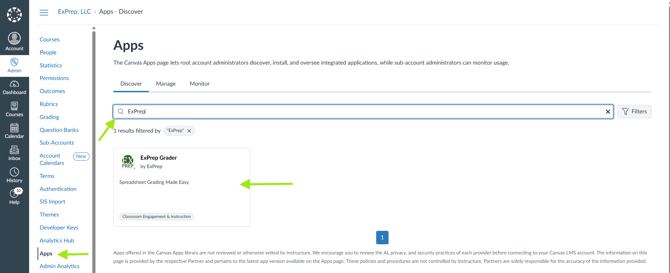
⚠️ NOTE: You will need to change the redirect URI to be https://portal.excelpreparation.com/lti/v1.3/auth
Once the ExPrep Grader is configured as a LTI tool in the Canvas instance, please share with ExPrep Tech team the ClientID and Deployment Id using this LTI Configuration Details Form
Once ExPrep receives these details and the configuration for your client is complete on ExPrep’s end, someone from ExPrep will reach out to test the integration.
Here is a video (0:46) showing the steps in the installation process from the Canvas Apps page. Again, remember to change the redirect URI to https://portal.excelpreparation.com/lti/v1.3/auth
Please email support@exprep.com with any questions.
Manual Installation
Note: If you need to install the ExPrep grader in a developer/test instance of Canvas, please email support@exprep.com for install instructions to our developer/test instance.
Developer Keys ➡️ LTI Key
----------------------------------------
Key Name: ExPrep Grader
Owner Email: contact@excelpreparation.com
Redirect URIs: https://portal.excelpreparation.com/lti/v1.3/auth
Title: ExPrep Grader
Description: ExPrep Grader is a spreadsheets automation tool. ExPrep Grader LTI 1.3 tool supports Advantage services for integration with Canvas LMS.
Target Link URI: https://portal.excelpreparation.com/Exam/Index
OpenID Connect Initiation Url - https://portal.excelpreparation.com/lti/v1.3/launch
JWK Method: Public JWK URL
JWK URL: https://portal.excelpreparation.com/lti/jwks
LTI Advantage Services:
- Can create and view assignment data in the gradebook associated with the tool.
- Can view assignment data in the gradebook associated with the tool.
- Can view submission data for assignments associated with the tool.
- Can create and update submission results for assignments associated with the tool.
- Can retrieve user data associated with the context the tool is installed in.
Additional Settings:
Domain: portal.excelpreparation.com
Icon URL: https://portal.excelpreparation.com/Content/images/ExPrepLogo.png

Text: ExPrep Grader
Privacy Level: Public
Custom fields:
- exprep_isLaunchReq=true
- user_email=$Person.email.primary
- user_fname=$Person.name.given
- user_lname=$Person.name.family
Placement:
1.Link Selection
Select Message Type: LtiDeepLinkingRequest
Text: ExPrep Grader – Link Assignment
Target Link URI: https://portal.excelpreparation.com/Exam/Index
Icon URL: https://portal.excelpreparation.com/Content/images/ExPrepLogo.png
2.Assignment Selection
Select Message Type: LtiResourceLinkRequest
Text: ExPrep Grader – Create Course
Target Link URI: https://portal.excelpreparation.com/Exam/Index
Icon URL: https://portal.excelpreparation.com/Content/images/ExPrepLogo.png
- Once the above configuration is created, locate the tool from the Developer Keys list and make sure the State is set to “ON”
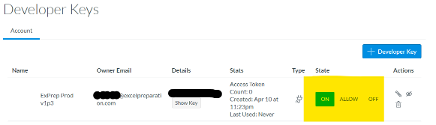
- Make a note of the ClientID and the Key for this tool (i.e. from the details column)
On the account level navigate to
- Settings ➡️ Apps ➡️ External Apps
- Add the configured ExPrep Grader Tool as an App to this account using the ClientID.
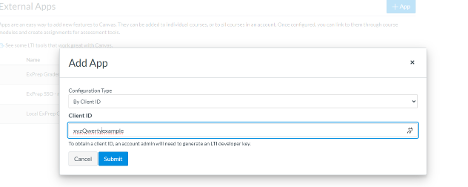
- On Submit, you will see that ExPrep is now added to the External Apps list.
- Click the gear icon
 to view the Deployment Id. Make sure note of this Deployment Id.
- Add the configured ExPrep Grader Tool as an App to this account using the ClientID.
Once the ExPrep Grader is configured as a LTI tool in the Canvas instance, please share with ExPrep Tech team the ClientID and Deployment Id using this LTI Configuration Details Form
Once ExPrep receives these details and the configuration for your client is complete on ExPrep’s end, someone from ExPrep will reach out to test the integration.