![ExPrep Logos 6.6.24_Black-2.png]](https://support.excelpreparation.com/hs-fs/hubfs/ExPrep%20Logos%206.6.24_Black-2.png?height=40&name=ExPrep%20Logos%206.6.24_Black-2.png)
As an LMS Administrator, you'll need to:
- Register ExPrep Grader as an LTI tool
- Create a deployment for the registered tool
- Create links within the deployment so users can interact with the tool inside their courses
Register the Tool
From the Settings icon, go to:
Manage Extensibility → LTI Advantage → Register Tool → Standard
Complete the form using these values:
| Field | Value |
| Status | Enabled |
| Name | ExPrep Grader |
| Description |
ExPrep Grader is a spreadsheets automation tool. ExPrep Grader LTI 1.3 tool supports Advantage services for integration with D2L. |
| Domain | https://portal.excelpreparation.com |
| Redirect URLs | https://portal.excelpreparation.com/lti/v1.3/auth |
| OpenID Connect Login URL | https://portal.excelpreparation.com/lti/v1.3/launch |
| Target Link URI | https://portal.excelpreparation.com/Exam/Index |
| Keyset URL | https://portal.excelpreparation.com/lti/jwks |
| Extensions |
✓ Assignment Grade Services |
| Roles |
✓ Send Institution Role |
Substitution Parameters:
|
Name |
Value |
| user_email | $Person.email.primary |
| user_fname | $Person.name.given |
| user_lname | $Person.name.family |
| user_id | $User.id |
Custom Parameters:
|
Name |
Value |
| exprep_isLaunchReq | true |
.png?width=670&height=867&name=Copy%20of%20Untitled%20(8.5%20x%2011%20in).png)
Select Register.
🔑 Copy and save the registration details generated by the LMS.
These need to be shared with the ExPrep team to complete the integration.
Create a Deployment
The ExPrep tool should now be listed and enabled under the LTI Advantage tools list.
Open ExPrep Grader in the tool list and choose View Deployments → New Deployment.
Complete the form using these values:
|
Field |
Value |
| Status | Enabled |
| Name | ExPrep Grader [Select this tool from the drop-down menu] |
| Description | ExPrep Grader is a spreadsheets automation tool. |
| Extensions |
✓ Assignment and Grade Services |
| Security Settings |
✓ Org Unit Information |
| Configuration Settings |
✓ Open as External Resource |
To make the tool available, select:
Add Org Units → Choose Org Unit Type → Organization/Department → Available to all descendants
Once you've added the org unit type, select Create Deployment.
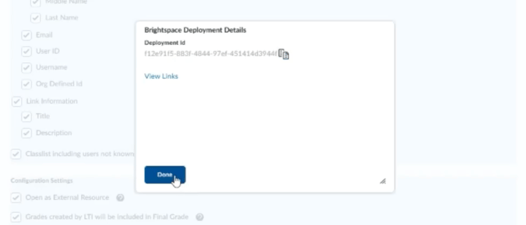
🔑 Copy and save the Deployment ID.
This will need to be shared with the ExPrep team to complete the integration.
Create the Links
From inside the new deployment, create two links: View Links → New Link
🔗 1 - Create Course Link:
|
Field |
Value |
| Status |
Enabled |
| Name | ExPrep Grader - Create Course |
| URL | https://portal.excelpreparation.com/Exam/Index |
| Type | Basic Launch |
🔗 2 - Link Assignment:
|
Field |
Value |
| Status | Enabled |
| Name | ExPrep Grader - Link Assignment |
| URL | https://portal.excelpreparation.com/Exam/Index |
| Type |
Deep Linking Quicklink |
Verify that both links are Enabled.
Send Configuration Details to ExPrep
📬 Please use this form to share the registration details and deployment ID you saved with the ExPrep team.