![ExPrep Logos 6.6.24_Black-2.png]](https://support.excelpreparation.com/hs-fs/hubfs/ExPrep%20Logos%206.6.24_Black-2.png?height=40&name=ExPrep%20Logos%206.6.24_Black-2.png)
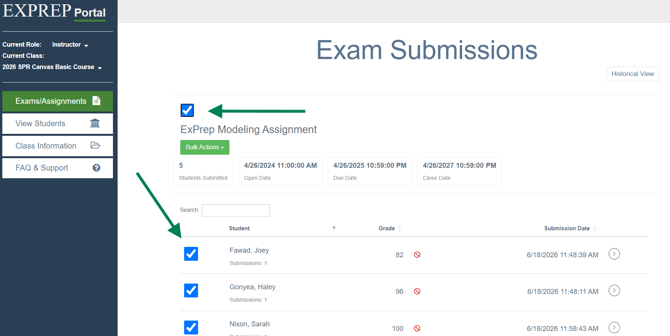
When viewing assignment submissions, the red invalid symbol (🚫) most often indicates that the grade was either not sent to your LMS or is not currently syncing correctly. To resolve this issue, follow the steps below.
Step 1: Select the Submissions
➡️Navigate to the assignment containing the submissions that are not syncing.
- If all grades for the assignment are not syncing,
- Select the checkbox above the assignment name to select all submissions.
- If only a few grades are affected,
- Select the checkbox next to each student's name individually.
Step 2: Send Grades to Your LMS
After selecting the submissions you want to sync:
-
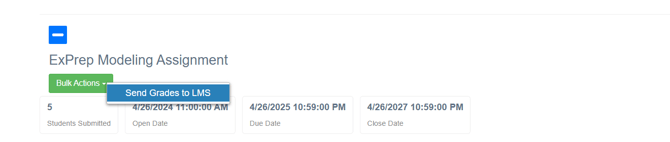
➡️Click the green Bulk Actions button located beneath the assignment name.
-
➡️Select Send Grades to LMS.
Step 3: Confirm the Sync
Once the process has started:
- You will receive an email confirming that the grades are being pushed to your LMS.
- A second email will be sent once the process is complete, letting you know whether the grades were successfully synced or if any issues occurred.
💡If grades continue to show the red invalid symbol after following these steps, please contact ExPrep Support for additional assistance.