![ExPrep Logos 6.6.24_Black-2.png]](https://support.excelpreparation.com/hs-fs/hubfs/ExPrep%20Logos%206.6.24_Black-2.png?height=40&name=ExPrep%20Logos%206.6.24_Black-2.png)
Please select the option that most closely relates to your situation:
- Updating a Password When Already Logged In
- Updating a Password Without Logging In (i.e forgot password)
- Error Message When Changing Password
Updating a Password When Already Logged In
When you are logged into your ExPrep portal, follow these steps to update your password:
- ➡️Select your Name dropdown in the upper right-hand corner
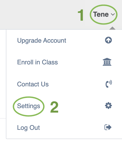
- ➡️ Settings
- ➡️ Change Password
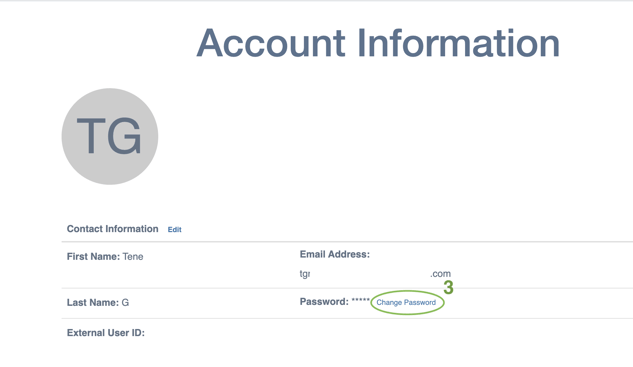
- ➡️Provide your Current Password and then a New Password
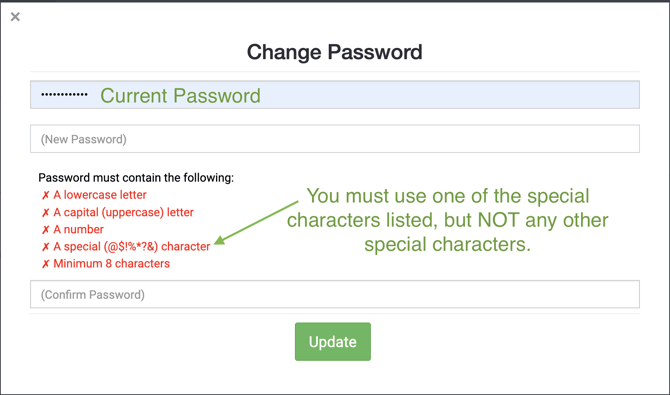
💡If you don't know your current password, log out and follow the steps below for Updating your Password without Logging in.
Updating a Password Without Logging In
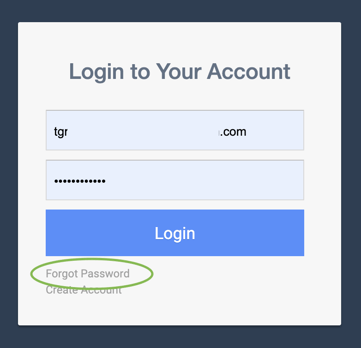
- ➡️Go to the ExPrep Portal login page
- ➡️Select Forgot Password
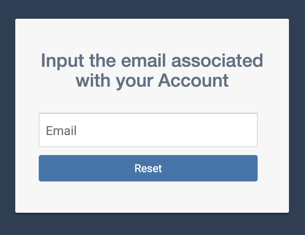
- ➡️Enter the email address associated with your ExPrep account
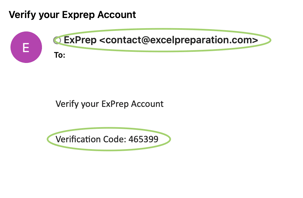
- ➡️Check your email for an email from contact@excelpreparation.com which will include your Verification Code
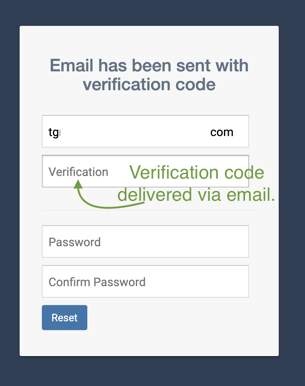
- ➡️Enter the Verification Code along with your new password on the next screen
Error Message When Changing Password
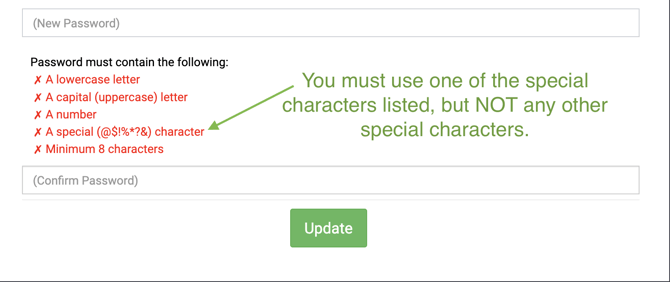
If you are receiving an error message when you attempt to enter a new password, it is likely because you have used a special character that is NOT allowed. The only special characters that you can use include: @ $ ! % * ? &
💡If you still need help, please reach out to our support team.