![ExPrep Logos 6.6.24_Black-2.png]](https://support.excelpreparation.com/hs-fs/hubfs/ExPrep%20Logos%206.6.24_Black-2.png?height=40&name=ExPrep%20Logos%206.6.24_Black-2.png)
The process for creating a new course for your students to enroll in looks slightly different depending on having LMS integration or not. Below you will find directions on how to create your new course if you do NOT have LMS integration.
To create your new course that students will enroll in, there are two different methods:
- Create a New Course by Copying Assignments from the Master Course Shell
- Create a New Course that is Empty and add Assignments Later
Regardless of which method you use, all professors will need to share the class code associated with the newly created course with students.
Create a New Course by Copying Assignments from the Master Course Shell
If your assignments are already loaded into your Master Course Shell, the most efficient way to create a new course that is available for student use, is to create the course via an assignment copy. To get started:
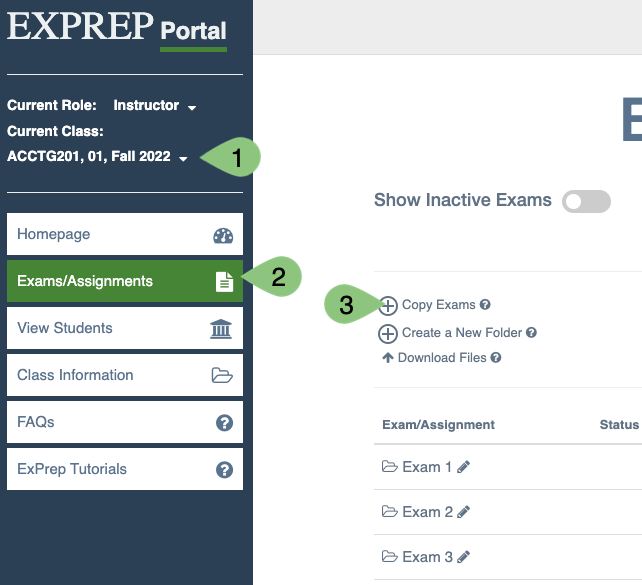
- Navigate to the course that holds the assignments you will copy to your new course
- ➡️ Exams/Assignments tab
- ➡️ Copy Exams button
- A pop up window will be displayed
- All Exams will be selected by default. If you want to select specific assignments to be copied, deselect All Exams. This will display all of the exams in the course and you can select the ones you want to copy over.
- ➡️ Copy to dropdown will default to New Class. Do not change this option.
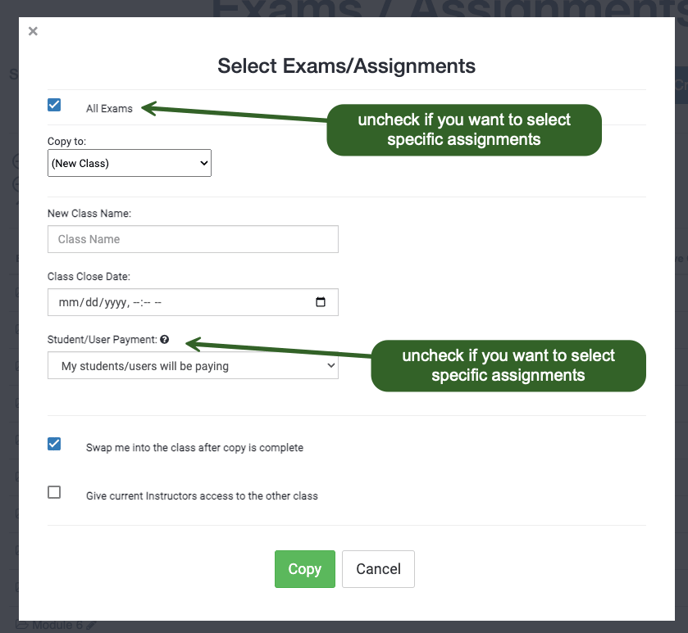
- Enter the appropriate Class Name
- Enter the appropriate Class Close Date
- Select a Student/User Payment
- My organization/institution handles payments is appropriate for a scenario where the organization or institution pays ExPrep directly (i.e. we will send you an invoice).
- My students/users will be paying is the most common course type. This is appropriate for scenarios where the students purchase access directly from ExPrep, students purchase an access code from the bookstore, or students get access through an Inclusive Access (or similar) program.
- ➡️ Copy
At this point, you will have a newly created course that is ready for student enrollment.
Create a New Course that is Empty and add Assignments Later
To create a new course that is empty and that you will create assignments in later:
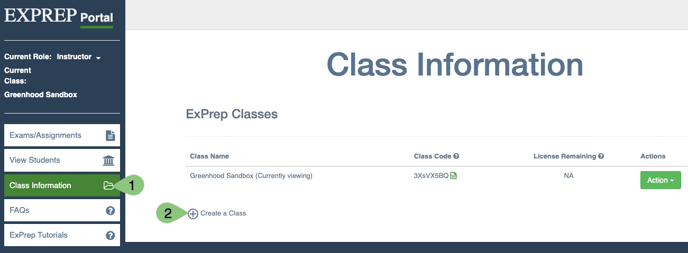
- From the ExPrep Portal, navigate to Class Information
- Select Create a Class which can be found near the bottom of your existing class list
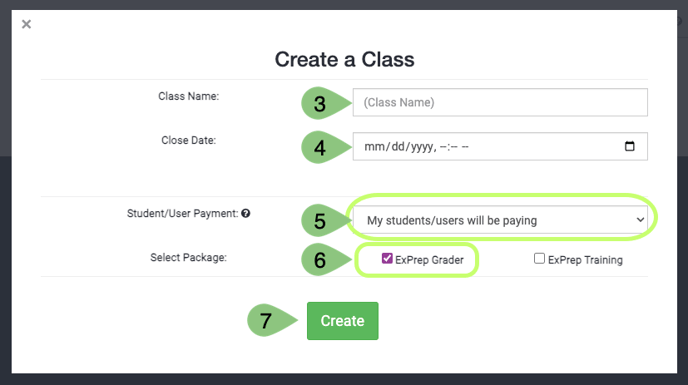
- Enter a Class Name
- We recommend using something that will be easy to identify as the course that holds your most current assignments. I.e. Acct201 MASTER
- Enter a Close Date
- Set the Student/User Payment
- My organization/institution handles payments is appropriate for a scenario where the organization or institution pays ExPrep directly (i.e. we will send you an invoice).
- My students/users will be paying is the most common course type. This is appropriate for scenarios where the students purchase access directly from ExPrep, students purchase an access code from the bookstore, or students get access through an Inclusive Access (or similar) program.
- Set the Package to ExPrep Grader
- Hit the Create button
What is next?
You now have your new course created and can start uploading your assignments or copying assignments into it from a different course. Some next steps for you might include:
- Sending ExPrep your Assignments for Grading Automation
- Adding the Student Orientation Assignment to your Course
- Copying Assignments
Locating the Class Code
Your students will enroll in your course using the Class Code that was automatically generated when your course was created. To locate your class code:
- ➡️ Class Information tab
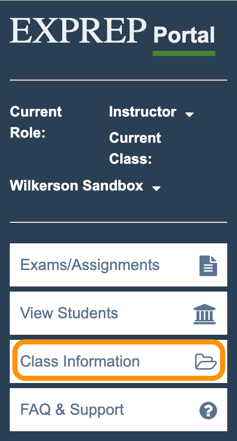
- Locate the appropriate Class Name
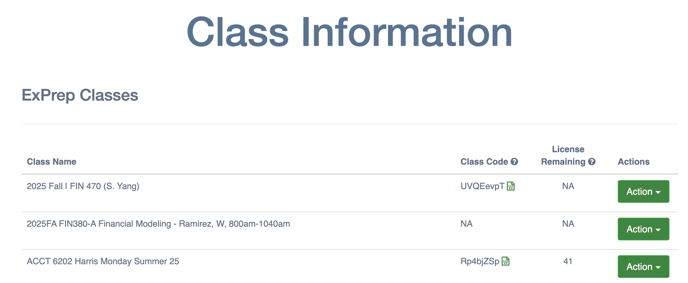
- The Class Code will be displayed to the right of the course name with a document symbol next to it.

- ➡️ Click on the document symbol to download directions to share with your students.
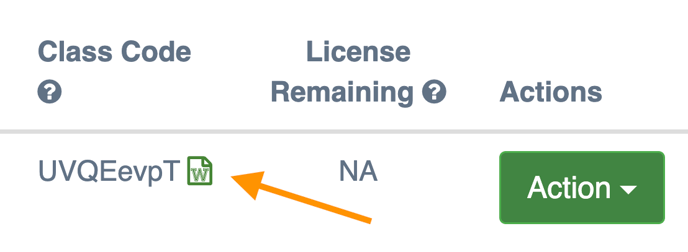
- The download file will provide brief directions on how to create an ExPrep account and will provide the student students with the correct class code that they will need to get enrolled in your course.
⚠️ The class code will change each semester, so if you copy your LMS course from one semester to the next, be sure to update the Class Code that you provided.
❗Firefox web browser will not download a Word document of the ExPrep class information. Please make sure to use a different browser (Chrome, Safari, or Edge).