![ExPrep Logos 6.6.24_Black-2.png]](https://support.excelpreparation.com/hs-fs/hubfs/ExPrep%20Logos%206.6.24_Black-2.png?height=40&name=ExPrep%20Logos%206.6.24_Black-2.png)
To customize a student's access to an assignment:
- Locate the appropriate assignment
- ➡️ Action dropdown
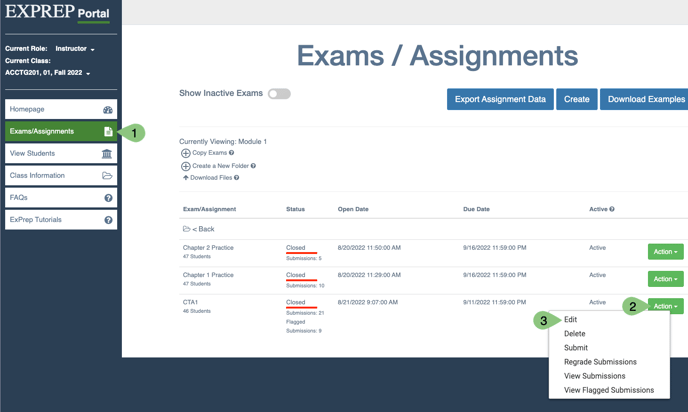
- ➡️ Edit
- The assignment settings window will appear. Scroll down and select Customize Student
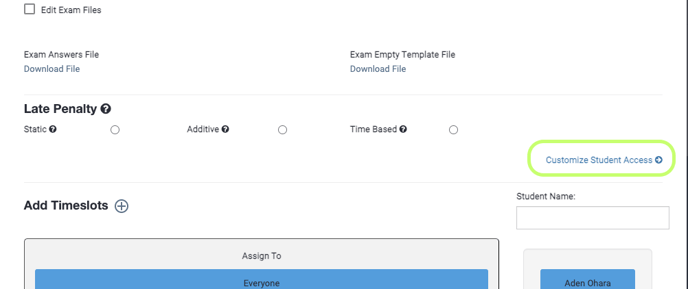 Access from the right hand side near the assignment time slots.
 - A pop-up window will appear that lists all of the students assigned. Locate the student at hand by scrolling through the list or using the filter options at the top.
- After locating the correct student, select Manage.
- The customized access window will appear where you can
- Deny Access- The student will no longer have access to the assignment regardless of the dates listed on the assignment.
- Extend Access- The student will have access indefinitely until this extension is removed.
- Time Limit- Allows you to set a custom time limit for the assignment.
- Allowed Attempts- Allows you to set a custom number of attempts for the assignment that will pertain to the particular student.
Important Notes:
- Customizing specific student access will override any current setting for the exam/assignment.
- If you click deny or extend access, the student will have this specific access until you manually remove the access option selected. For example, extending access will allow a student to access and submit to a specific assignment until the access is updated or removed.
- For students that need to be accommodated with additional time for an exam, you can customize their student access to provide a specific amount of time.