![ExPrep Logos 6.6.24_Black-2.png]](https://support.excelpreparation.com/hs-fs/hubfs/ExPrep%20Logos%206.6.24_Black-2.png?height=40&name=ExPrep%20Logos%206.6.24_Black-2.png)
To copy assignments into another course:
- Log into your ExPrep Portal
- Navigate to the course that contains the assignments you want to copy (such as your sandbox or a previously used course section).
- ➡️ Exams/Assignments tab
- ➡️ Copy Exams button
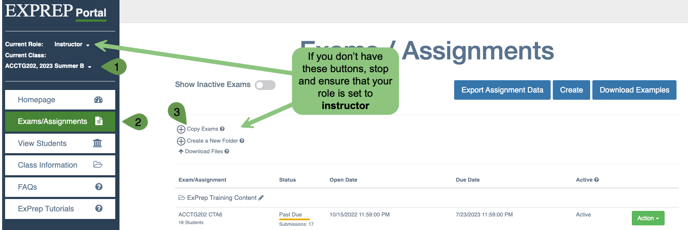
A new window will appear where you can select which class to put the assignments in and which assignments to copy over.
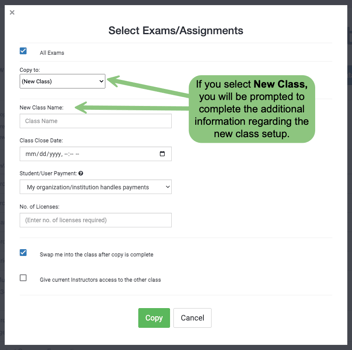
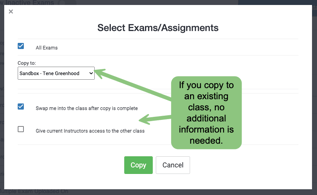
- Copy to
- (New Class): Will create a new class and will require that you complete the additional information regarding that class. Please see the Creating a New Class article for more information on the questions.
- Select an existing class: This will copy the assignments that you select into this particular class.
- All Exams vs Select Exams
- All Exams: This box is selected by default. If you leave it selected, all of the exams that are contained in the class you are currently viewing will be copied over.
- Select Exams: Deselect the box, which will expand the window so that you can select specific assignments that you want to copy over. If you have many assignments, you might benefit from using the search bar to locate the assignments you want to copy.
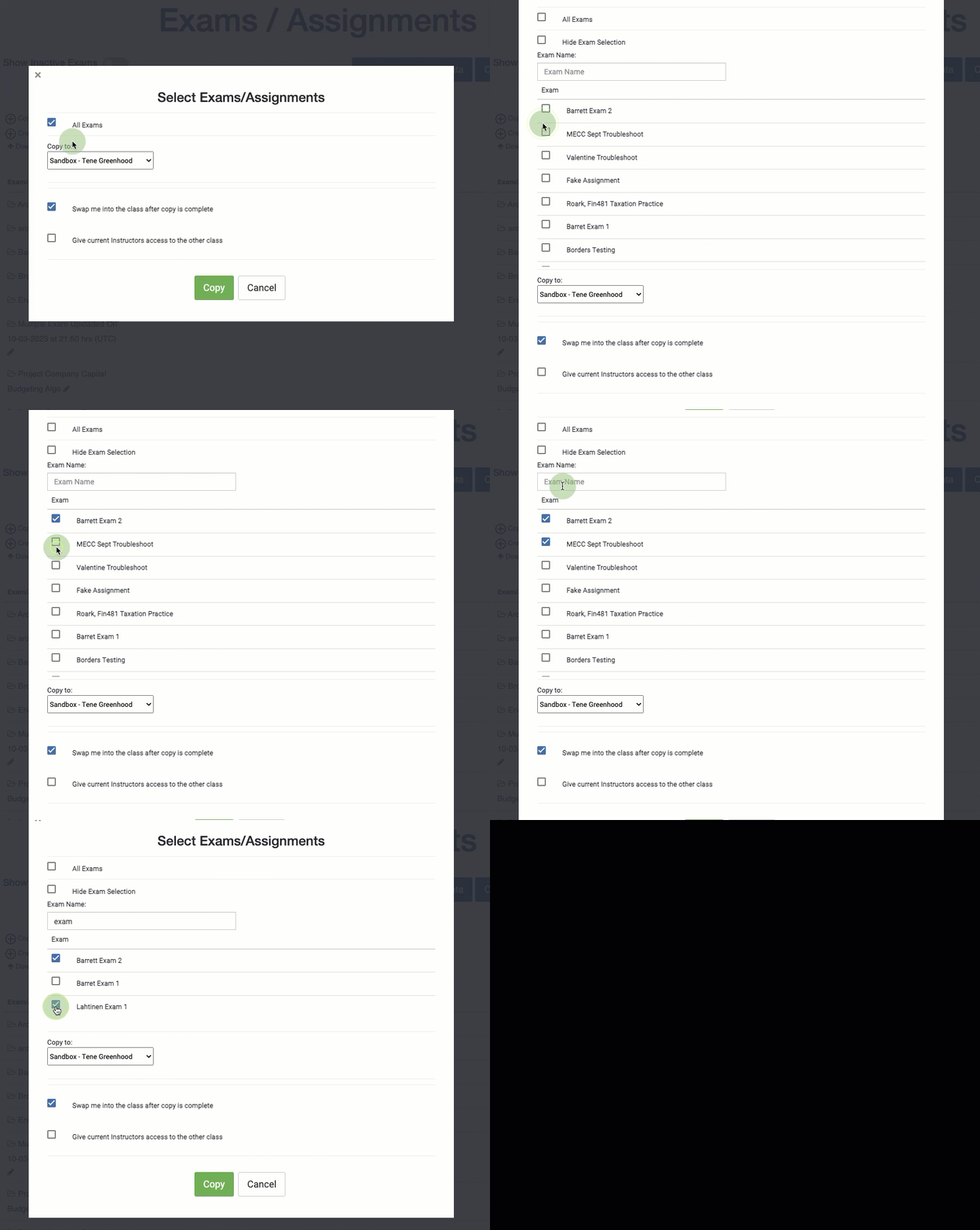
💡Having some sort of assignment naming convention can be very helpful when you teach multiple different courses and need to copy exams for one course at a time.
If you have questions, reach out to our support team.