![ExPrep Logos 6.6.24_Black-2.png]](https://support.excelpreparation.com/hs-fs/hubfs/ExPrep%20Logos%206.6.24_Black-2.png?height=40&name=ExPrep%20Logos%206.6.24_Black-2.png)
Configuration to add ExPrep Grader in Canvas LMS as an LTI Tool
- As a Canvas Administrator you would have to add ExPrep Grader as a LTI tool by creating the LTI Key.
- Use the below details to configure the LTI Key.
Developer Keys ➡️ LTI Key
----------------------------------------
Key Name: ExPrep Grader
Owner Email: contact@excelpreparation.com
Redirect URIs: https://portal.excelpreparation.com/lti/v1.3/auth
Title: ExPrep Grader
Description: ExPrep Grader is a spreadsheets automation tool. ExPrep Grader LTI 1.3 tool supports Advantage services for integration with Canvas LMS.
Target Link URI: https://portal.excelpreparation.com/Exam/Index
OpenID Connect Initiation Url - https://portal.excelpreparation.com/lti/v1.3/launch
JWK Method: Public JWK URL
JWK URL: https://portal.excelpreparation.com/lti/jwks
LTI Advantage Services:
- Can create and view assignment data in the gradebook associated with the tool.
- Can view assignment data in the gradebook associated with the tool.
- Can view submission data for assignments associated with the tool.
- Can create and update submission results for assignments associated with the tool.
- Can retrieve user data associated with the context the tool is installed in.
Additional Settings:
Domain: portal.excelpreparation.com
Icon URL: https://portal.excelpreparation.com/Content/images/ExPrepLogo.png

Text: ExPrep Grader
Privacy Level: Public
Custom fields:
- exprep_isLaunchReq=true
- user_email=$Person.email.primary
- user_fname=$Person.name.given
- user_lname=$Person.name.family
Placement:
1.Link Selection
Select Message Type: LtiDeepLinkingRequest
Text: ExPrep Grader – Link Assignment
Target Link URI: https://portal.excelpreparation.com/Exam/Index
Icon URL: https://portal.excelpreparation.com/Content/images/ExPrepLogo.png
2.Assignment Selection
Select Message Type: LtiResourceLinkRequest
Text: ExPrep Grader – Create Course
Target Link URI: https://portal.excelpreparation.com/Exam/Index
Icon URL: https://portal.excelpreparation.com/Content/images/ExPrepLogo.png
- Once the above configuration is created, locate the tool from the Developer Keys list and make sure the State is set to “ON”
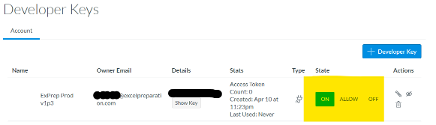
- Make a note of the ClientID and the Key for this tool (i.e. from the details column)
- Settings ➡️ Apps ➡️ External Apps
- Add the configured ExPrep Grader Tool as an App to this account using the ClientID.
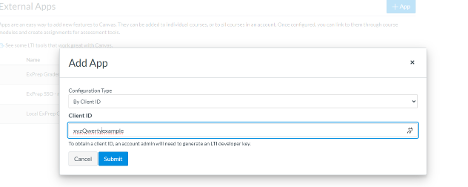
- On Submit, you will see that ExPrep is now added to the External Apps list.
- Click the gear icon
 to view the Deployment Id. Make sure note of this Deployment Id.
- Add the configured ExPrep Grader Tool as an App to this account using the ClientID.
Share Details with ExPrep
- Now that ExPrep Grader is configured as a LTI tool in the Canvas instance, kindly share with ExPrep Tech team the ClientID, Key and Deployment Id using this
LTI CONFIGURATION DETAILS FORM
- Once ExPrep receives these details and the configuration for your client is complete on ExPrep’s end, someone from ExPrep would reach out to test the integration before we make the integration ready to use in the Live environment.