![ExPrep Logos 6.6.24_Black-2.png]](https://support.excelpreparation.com/hs-fs/hubfs/ExPrep%20Logos%206.6.24_Black-2.png?height=40&name=ExPrep%20Logos%206.6.24_Black-2.png)
Configuration to add ExPrep Grader tool in Blackboard LMS as a LTI Tool
- Login as LMS Admin
- Visit the Administrator Panel ➡️ Under Integrations ➡️ LTI Tool Providers
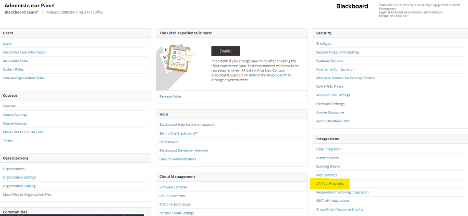
- Click “Register LTI 1.3/Advantage Tool”

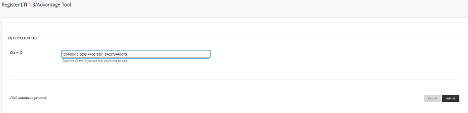
- Enter the below Client ID to configure ExPrep-Grader Tool and click Submit.
- Client ID - d343a538-46b1-4458-bec0-2854cd20a613
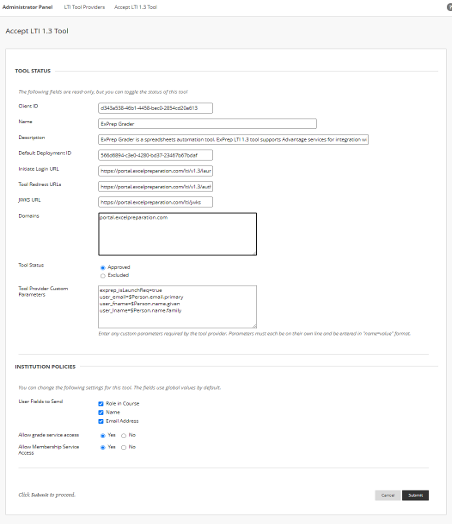
- After submitting Blackboard would pull up all the settings that ExPrep Grader Tool is configured with from ExPrep’s Blackboard portal.
- Make a note of the Default Deployment ID
- Switch the Tool Status to Approved
- Add the below to the Tool Provider Custom Parameters
- exprep_isLaunchReq=true
- user_email=$Person.email.primary
- user_fname=$Person.name.given
- user_lname=$Person.name.familyOnce Blackboard pulls up the below screen,
- For User Fields to Send, make sure to select/check the fields.
- Role in Course
- Name
- Email Address
- Allow grade service access set to Yes
- Allow Membership Service Access set to Yes
The configuration should look like the picture below,
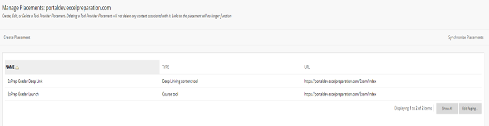
- After submitting you should see ‘ExPrep Grader’ listed under the LTI Tool Providers list with an Approved status and should have 2 Placements configured by default.
- To confirm that placements exist for this tool select Manage Placements to view the placements as shown in the below picture.
-
Share Details with ExPrep
- Now that ExPrep Grader is configured as a LTI tool in the Blackboard instance, kindly share with ExPrep Tech team the Default Deployment Id using this
LTI CONFIGURATION DETAILS FORM
- Once ExPrep receives these details and the configuration for your client is complete on ExPrep’s end, someone from ExPrep would reach out to test the integration before we make the integration ready to use in the Live environment.
- Now that ExPrep Grader is configured as a LTI tool in the Blackboard instance, kindly share with ExPrep Tech team the Default Deployment Id using this