![ExPrep Logos 6.6.24_Black-2.png]](https://support.excelpreparation.com/hs-fs/hubfs/ExPrep%20Logos%206.6.24_Black-2.png?height=40&name=ExPrep%20Logos%206.6.24_Black-2.png)
Article Navigation
Use these links to quickly navigate around the article:
4 Steps to Integration
Step 1: Link External Tool and Create Class
First, you must create a temporary assignment with an external tool to connect Canvas to ExPrep. In doing so, you will be creating a new course in ExPrep which will be tied to this Canvas course.
- Navigate to the appropriate course in Canvas
- Create new assignment, name it ExPrep SSO - Test.
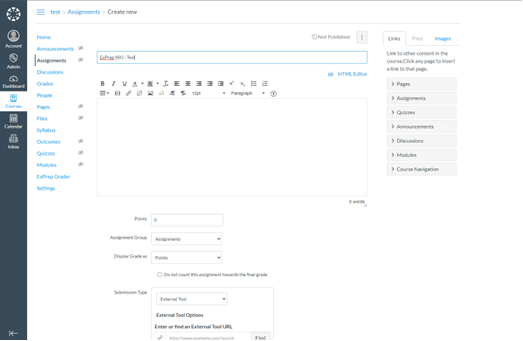
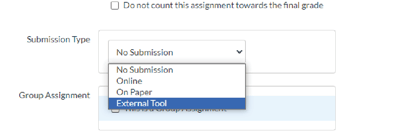
- In the Submission Type dropdown, select External Tool.
- Type ExPrep Grader in the Enter or Find an External Tool URL box. Select ExPrep Grader.
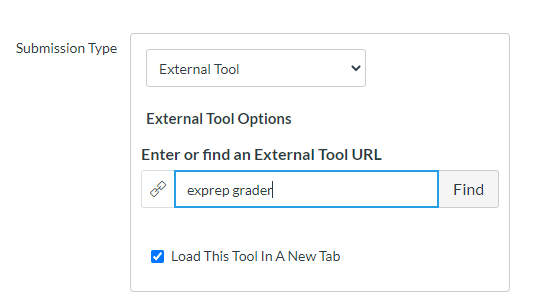
- Check the box for Load This Tool in a New Tab.
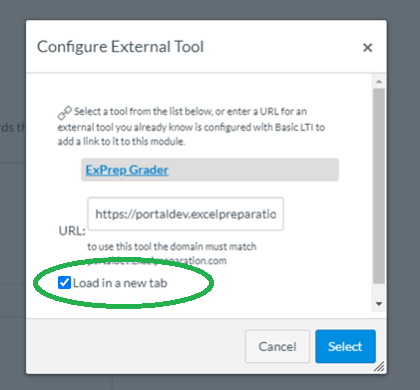
- Hit Select, and then save the assignment.
- Open the assignment, and you should see a button to load the assignment in a new window. Click that button.
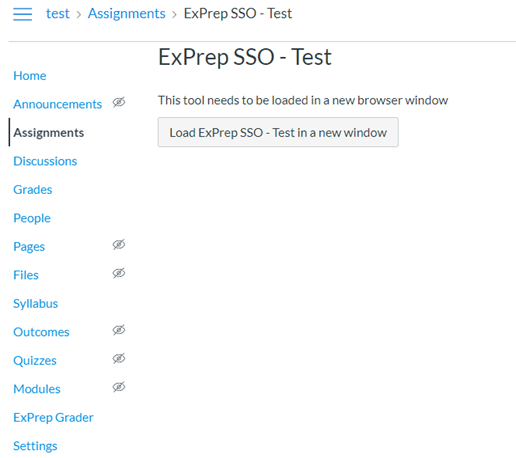
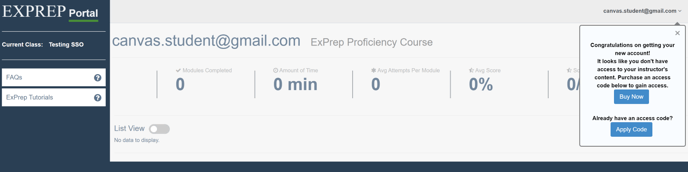
- You will be launched into the ExPrep Portal in a new tab, with your account logged in and your class created. The class name will correspond with your Canvas course name. (How to Change an ExPrep Course Name)
Step 2: Add Assignments to ExPrep Course
In the second step you will add assignments to your newly created ExPrep course. You can copy assignment content from an existing course or create new assignments. If you are unfamiliar with how to create assignments inside of ExPrep, please find additional resources linked below.
| HOW TO: Create a New Assignment | HOW TO: Copy an Existing Assignment |
Step 3: Sync the ExPrep Assignments with Canvas
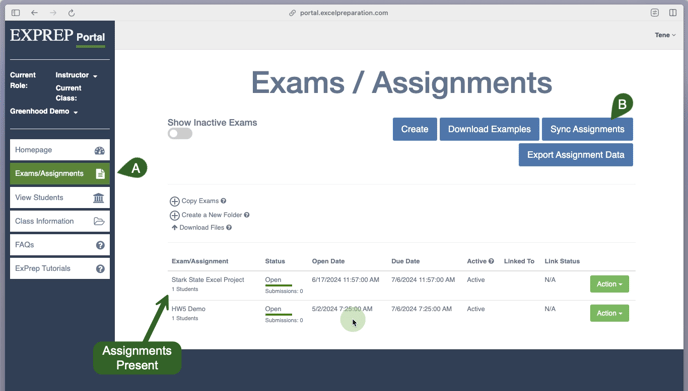
- After your assignments are available in your ExPrep course, navigate to the
Exams/Assignments tab. - Select Sync Assignments from the upper right hand corner.
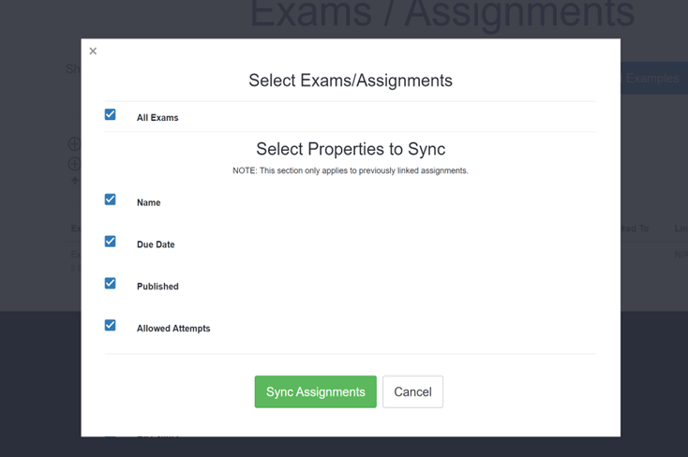
- From the popup window, click "Sync Assignments" to initiate the connection between your portal assignments and the course.
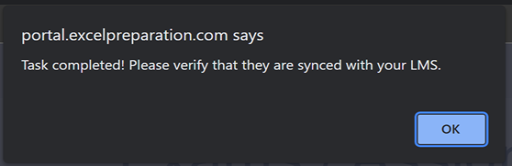
- You will see a "success" pop-up, telling you your assignments are linked to ExPrep. Student grades should be pushed to the Canvas gradebook from there.
⚠️Any changes for your Exam/Assignment (due dates, close dates, published, allowed attempts) should be done in ExPrep and then synced to Canvas.
Congratulations! Your Canvas course is now paired with your ExPrep course! If you have any further questions or concerns while following these instructions, please contact ExPrep Support here.
FAQ
Visit this link for a FAQ document regarding LTI Integration.