![ExPrep Logos 6.6.24_Black-2.png]](https://support.excelpreparation.com/hs-fs/hubfs/ExPrep%20Logos%206.6.24_Black-2.png?height=40&name=ExPrep%20Logos%206.6.24_Black-2.png)
Article Navigation
Use these links to quickly navigate around the article:
3 Steps to Integration
Step 1: Enable LTI Launch
First, you must enable the LTI launch from within your Blackboard course to connect it to ExPrep. In doing so, you will also create a new course in ExPrep which will be tied to your Blackboard course.
- Navigate to the appropriate course in Blackboard
- From the home page, under the Course Management menu, select Course Tools
- Expand the Course Tools menu and select ExPrep Grader Launch
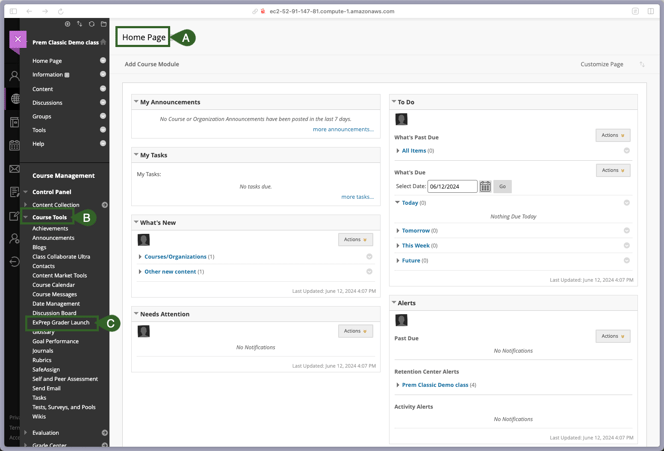
-gif.gif?width=665&height=513&name=2024-06-25_09-24-33%20(1)-gif.gif)
- You will be launched into ExPrep. When you see the Welcome Message, select Proceed.
Step 2: Add Assignments to ExPrep Course
In the second step you will add assignments to your newly created ExPrep course. You can copy assignment content from an existing course or create new assignments. If you are unfamiliar with how to create assignments inside of ExPrep, please find additional resources linked below.
| HOW TO: Create a New Assignment | HOW TO: Copy an Existing Assignment |
Step 3: Pair (Deep Link) the ExPrep Assignments with the Blackboard Course
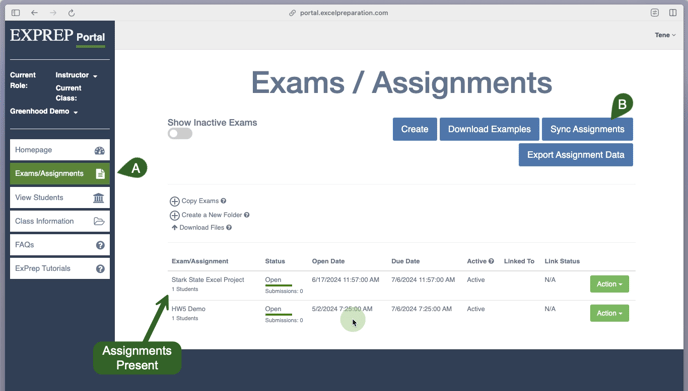
- After your assignments are available in your ExPrep course, navigate to the
Exams/Assignments tab. - Select Sync Assignments from the upper right hand corner.
- From the popup window, select the exams from the list ‘Exam(s) – Need to Link with LMS’ you would like to connect with Blackboard and hit Select to Sync.
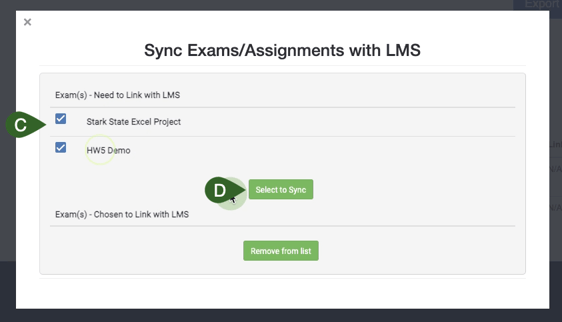
-gif.gif?width=688&height=531&name=2024-06-25_10-01-12%20(1)-gif.gif)
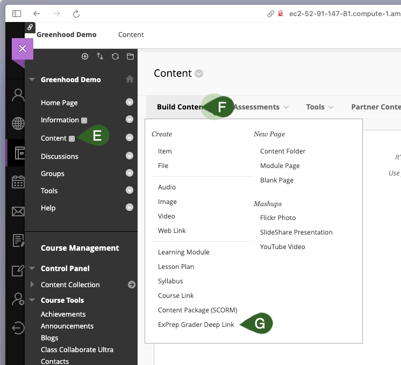
- Navigate back to the LMS Course.
- From the Home Page select Content from the left hand menu.
- Select the Build Content dropdown arrow.
- Select ExPrep Grader Deep Link.
- A message will display indicating that assignments were successfully linked into your course.
- Navigate to the grade book and confirm that all of the ExPrep assignments that you selected to sync now have a column present and make any required changes.
-gif.gif?width=688&height=531&name=2024-06-25_10-03-59%20(1)-gif.gif)
Congratulations! Your Blackboard course is now paired with your ExPrep course! If you have any further questions or concerns while following these instructions, please contact ExPrep Support here.
FAQ
Visit this link for a FAQ document regarding LTI Integration.
Video Walkthrough
Below we walkthrough the LTI course setup with Blackboard Classic from start to finish in under 3 minutes.