![ExPrep Logos 6.6.24_Black-2.png]](https://support.excelpreparation.com/hs-fs/hubfs/ExPrep%20Logos%206.6.24_Black-2.png?height=40&name=ExPrep%20Logos%206.6.24_Black-2.png)
Article Navigation
Use these links to quickly navigate around the article:
4 Steps to Integration
Step 1: Enable LTI Launch
First, you must enable the LTI launch from within your Blackboard course to connect it to ExPrep. In doing so, you will also create a new course in ExPrep which will be tied to your Blackboard course.
- Navigate to the appropriate course in Blackboard
- From the home page, under the Course Management menu, select Course Tools
- Expand the Course Tools menu and select ExPrep Grader Launch
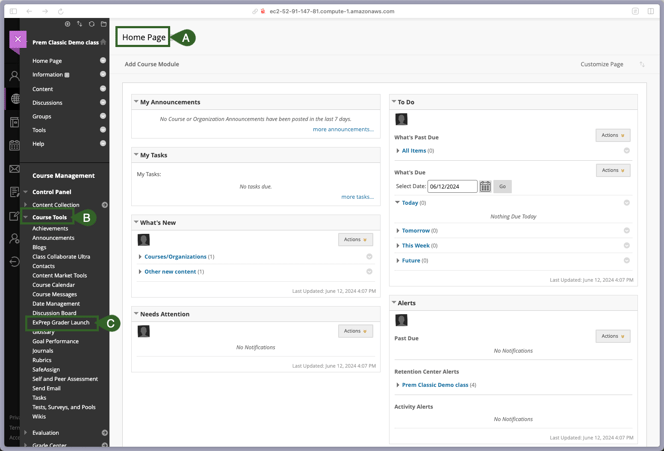
-gif.gif?width=665&height=513&name=2024-06-25_09-24-33%20(1)-gif.gif)
- You will be launched into ExPrep. When you see the Welcome Message, select Proceed.
Step 2: Add Assignments to ExPrep Course
In the second step you will add assignments to your newly created ExPrep course. You can copy assignment content from an existing course or create new assignments. If you are unfamiliar with how to create assignments inside of ExPrep, please find additional resources linked below.
| HOW TO: Create a New Assignment | HOW TO: Copy an Existing Assignment |
Step 3: Sync the ExPrep Assignments with the Blackboard Course
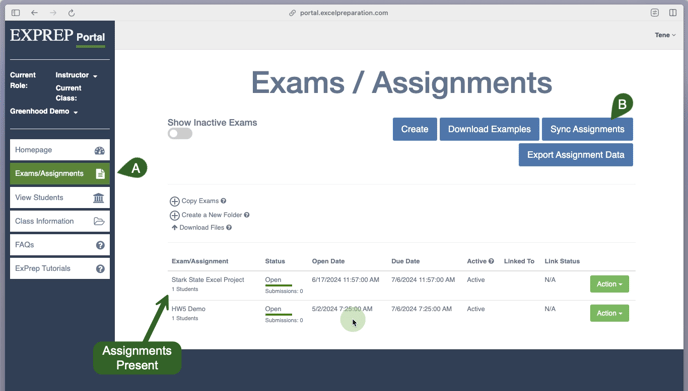
- After your assignments are available in your ExPrep course, navigate to the
Exams/Assignments tab. - Select Sync Assignments from the upper right hand corner.
Note: The LTI has to be enabled for your course for the Sync Assignments button to appear. Please let the ExPrep team know when you are linking a course so the LTI can be enabled and the button can show up.
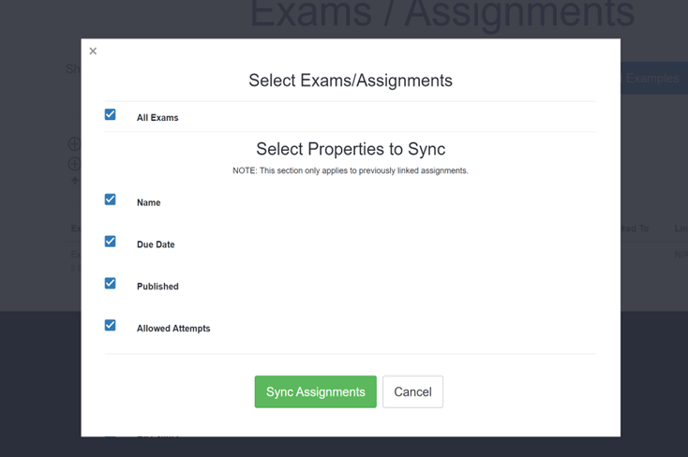
- From the popup window, click "Sync Assignments" to initiate the connection between your portal assignments and the course.
- You will see a "success" pop-up, telling you your LMS is linked to ExPrep.
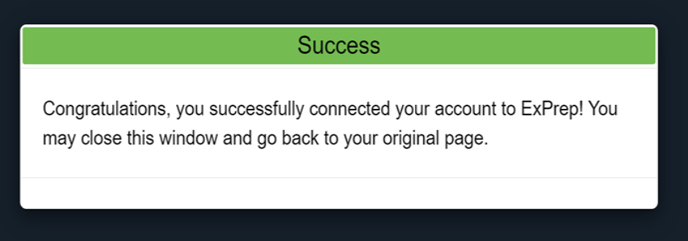
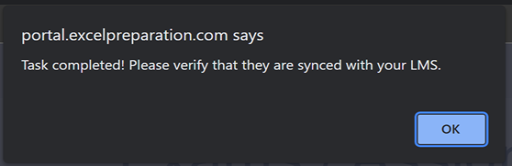
- After this initial authorization is complete, click the sync button again and repeat the process of syncing your assignments. This time, it will connect each assignment to Blackboard and you will see this success message:
- From the popup window, select the exams from the list ‘Exam(s) – Need to Link with LMS’ you would like to connect with Canvas and hit Select to Sync.
- Note: After you sync the assignments, 2 new columns get added to the exam columns. These will show you if the assignment is linked in Blackboard and if the link is active.
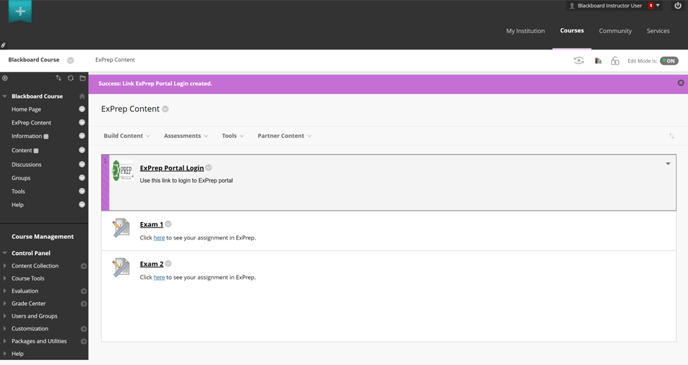
- ExPrep will create a content section named "ExPrep Content" in the Blackboard course.
Do not rename this content section. You will be able to see all your assignments there: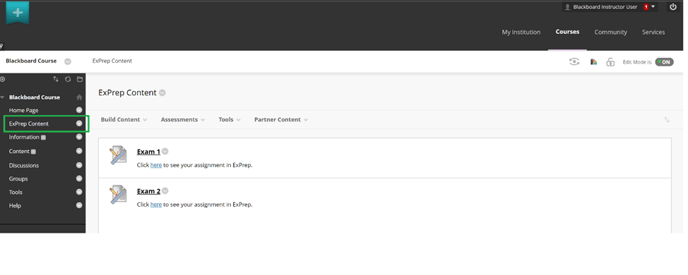
Create SSO Link for Students
- While in the ExPrep Content section, click the Tools dropdown menu.
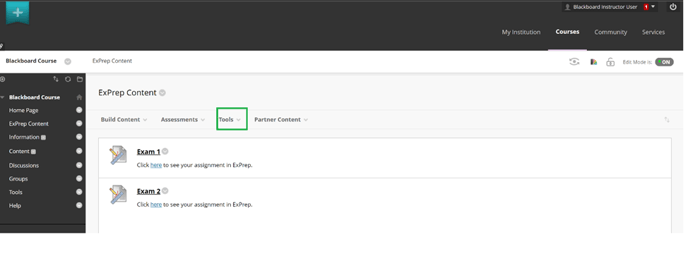
- Under "more tools", look for ExPrep Grader, select it, and then create the link for your students. Name it "ExPrep Portal Login" or whatever you would like, and then give details in the description to remind them this is where they log in to the portal.
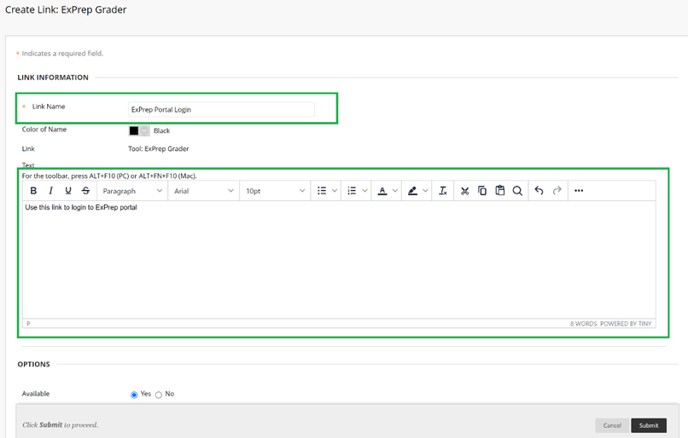
- Re-order this link to be at the top for easy accessibility for the students.
Congratulations! Your Blackboard course is now paired with your ExPrep course! If you have any further questions or concerns while following these instructions, please contact ExPrep Support here.
FAQ
Visit this link for a FAQ document regarding LTI Integration.