![ExPrep Logos 6.6.24_Black-2.png]](https://support.excelpreparation.com/hs-fs/hubfs/ExPrep%20Logos%206.6.24_Black-2.png?height=40&name=ExPrep%20Logos%206.6.24_Black-2.png)
To upload multiple assignments at once:
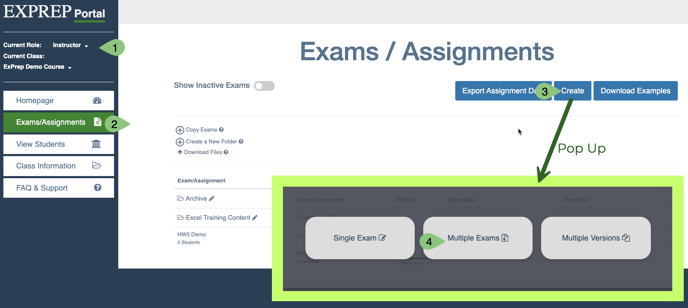
- When in Instructor role, select the Exams/Assignments page,
- Click the Create button at the top of the page
- Choose Multiple Exams
- Upload a zip folder that contains all the exams/assignments
All the files must be compressed in a zip folder containing both the solution and empty file for each assignment. Each solution/student set of files must have the same file name with the exception that the answer key file must have “(Answer)” at the end and the student starting file must have “(Empty)”.
- Configure each exam/assignment
- Click Create an Exam Setting to set the default assignment settings.
- Select Apply exam settings to configure all of the exams to the default settings at once
- Select Configure, next to each assignment name, to apply assignment settings one at a time or to modify the due dates/times for each assignment individually
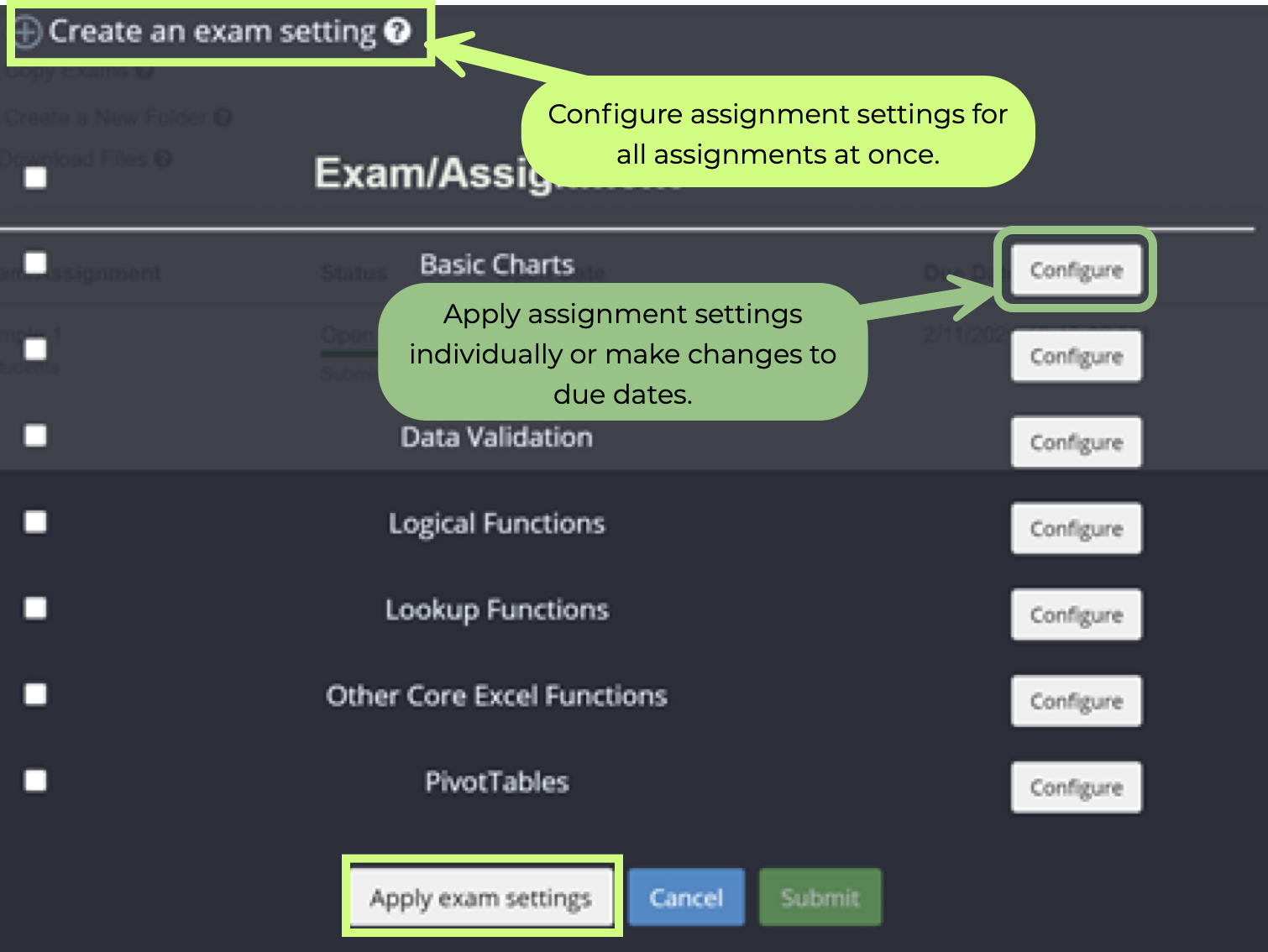
- Once all the exam/assignment configuration buttons are blue, select Submit to create your assignments
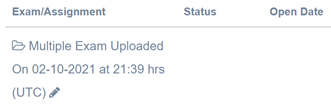
- Upon successfully creating multiple exams, a folder will be created with all the assignments within the folder. Initial folder names will provide details on when the folder was created but the name can be edited by clicking the pencil icon.
Important Notes
⚠️ Make sure to first apply the assignments with the newly created exam settings. Afterwards, you can apply individual assignment configurations. If you first individually configure assignments, then select multiple assignments to configure using the “exam settings”, it will remove the configuration from the individually set assignments.
⚠️ If you individually configure assignments, you can also add timeslots for specific students. You can also add timeslots at a later date/time by editing the exam/assignment.