![ExPrep Logos 6.6.24_Black-2.png]](https://support.excelpreparation.com/hs-fs/hubfs/ExPrep%20Logos%206.6.24_Black-2.png?height=40&name=ExPrep%20Logos%206.6.24_Black-2.png)
To create a multiple version assignment:
- Create 2+ versions of the answer file and empty file for an assignment.
- These assignments should be named an identical name, but with a version number provided at the end of the name.
- I.e. Cash Flow Budget v1 (Answer), Cash Flow Budget v1 (Empty), Cash Flow Budget v2 (Answer), Cash Flow Budget v2 (Empty)
- When the files are ready, zip them into a single file that will be used to upload the assignment into ExPrep.
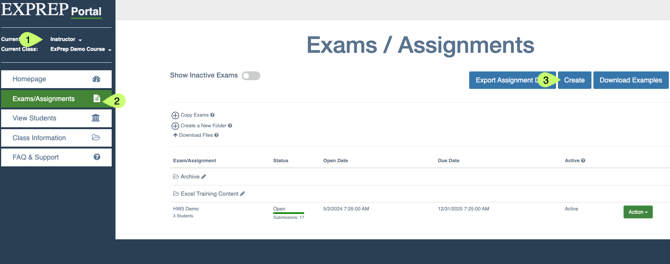
- Log into the ExPrep Portal
- Ensure that you are in Instructor view
- Navigate to Exams/Assignments tab
- Select Create
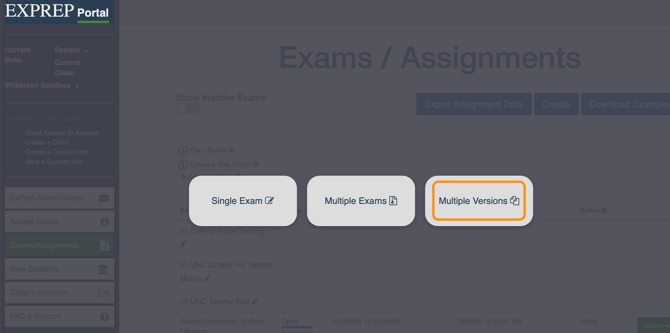
- Select Multiple Versions
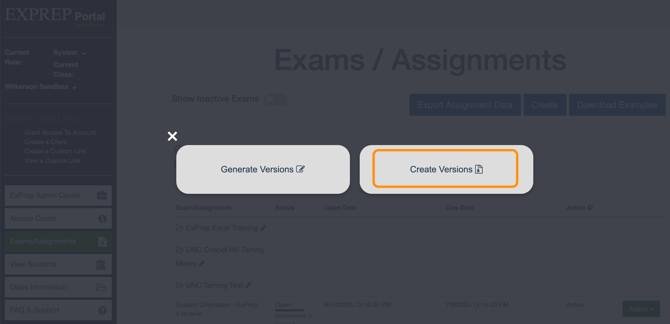
- Select Create Versions
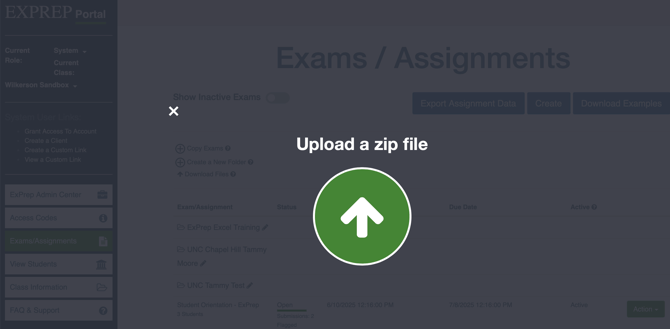
- Upload the zipped file that was created in previous steps containing the various versions of the assignment
- After the files upload you will be redirected to a screen to finalize the assignment settings
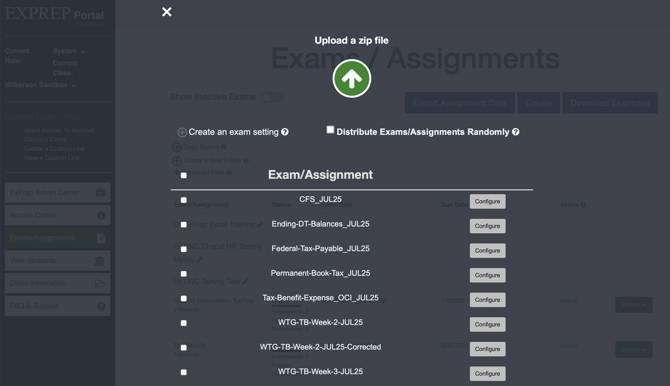
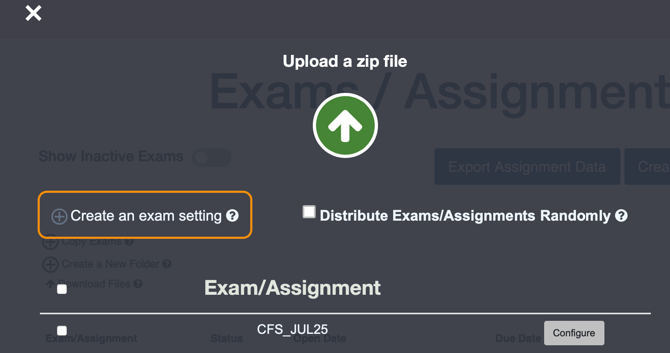
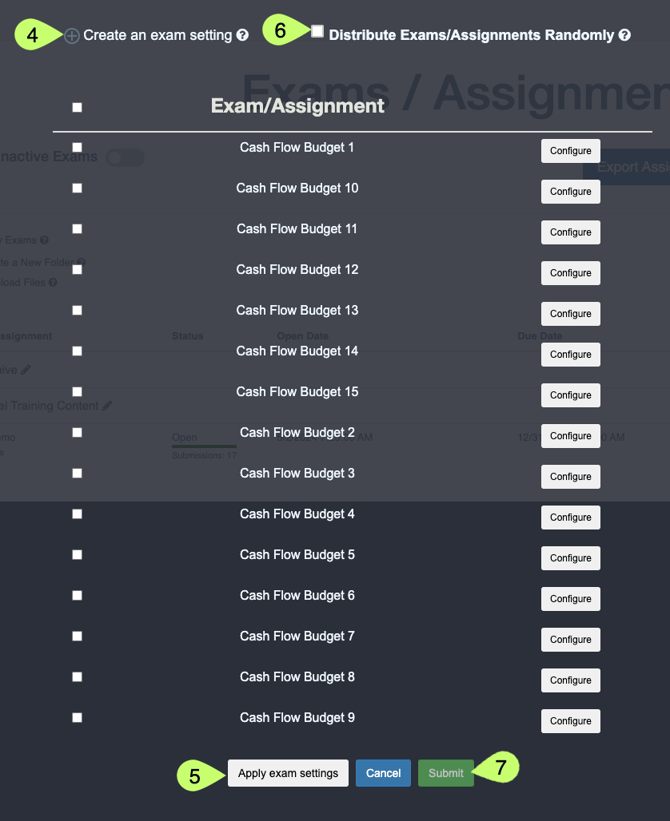
- Select Create an exam setting to quickly apply the same assignment settings to all versions
- If each version will have unique assignment settings, you can apply the settings individually using the Configure button next to each version
- If each version will have unique assignment settings, you can apply the settings individually using the Configure button next to each version
- Select Apply exam settings
- Select Distribute Exam/Assignments Randomly to assign students to the various versions
- Select Submit
NOTES:
You can individually edit the assignment distribution after the assignment is created if you need to separate two students that you know frequently work together. To do so, edit the exam like you normally would and then just removing a student from one version and adding them to a different version.
If you create a multiple version assignment before all of your students are enrolled in the course, the students will randomly be distributed to an assignment when they join the course.
At this time, you cannot create a multiple version assignment with more versions than you have students enrolled in the course. There are two solutions:
1. Use the Student Orientation assignment as a first assignment to get students enrolled in ExPrep and then create the multiple version assignment AFTER you have enough students enrolled. Recommended!
2. Email support@excelpreparation.com and request that fake students be added to your course section so that you can create your multiple version assignment before any students enroll.