![ExPrep Logos 6.6.24_Black-2.png]](https://support.excelpreparation.com/hs-fs/hubfs/ExPrep%20Logos%206.6.24_Black-2.png?height=40&name=ExPrep%20Logos%206.6.24_Black-2.png)
If you need to make changes to your answer file after students have started submitting, you can complete a "regrade" to grade all previously submitted assignments using the new answer file.
To complete a regrade:
- Make changes to the Answer File, or locate the copy of the updated file provided by the ExPrep team
- Log into the ExPrep Portal
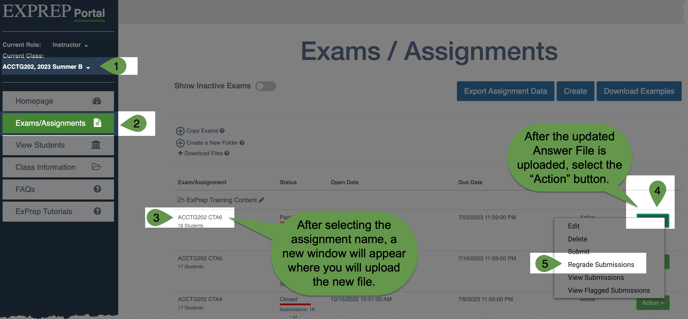
- Navigate to the correct course within your portal
- ➡️ Exams/Assignments tab
- Identify the relevant assignment and click on the assignment name
- ➡️ Select the "Edit Exams" box
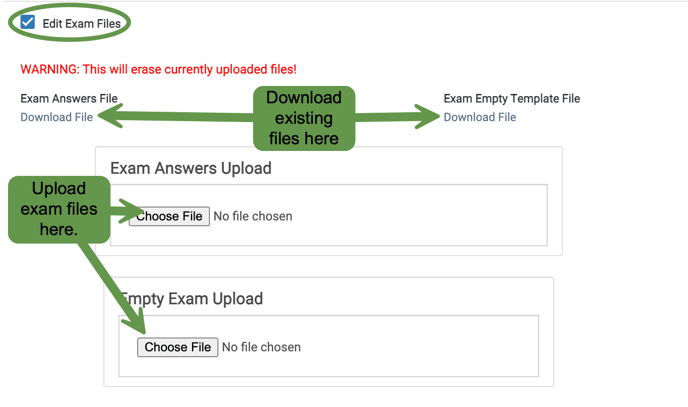
- Upload the new answer file
- Save the assignment
- ➡️ Action dropdown menu
- ➡️ Regrade Assignments button
⏳If you do not immediately see the regraded submissions, please wait and check back 5-10 minutes later.
📄 Take a look at this article on how to export grades from ExPrep with LMS.
To Push Grades with LMS Integration:
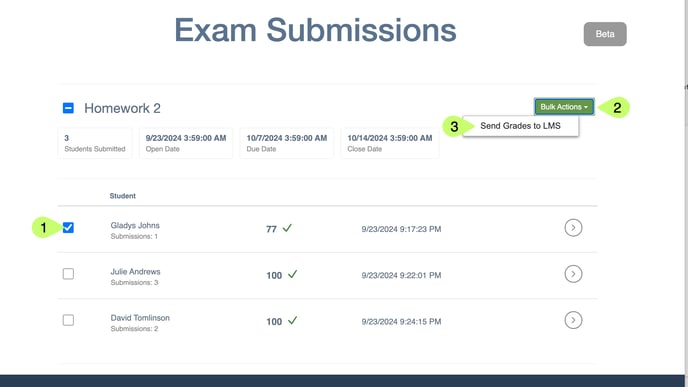
1. Select the students whose grades you would like to update, or select the box beside the exam title to select all the students
2. Go to Bulk Actions
3. Click Send Grades to LMS
4. You will receive an update email telling you the sync status of this assignment.
⚠️ We recommend using the "allowed attempt" on ExPrep to limit student submissions, rather than using the settings on Canvas or Blackboard. If you "Send Grades to LMS" but the student has used up all the available attempts in your LMS, the grades will not sync properly.
💡 A check mark will be displayed by the grade that is synced to your LMS. An error symbol (🚫) means that the grade did not sync and must be transferred manually. Reasons why an assignment might not sync are primarily due to limitations set by your campus LMS administrators.
📩 If you have any questions or concerns, please reach out to the support team.