![ExPrep Logos 6.6.24_Black-2.png]](https://support.excelpreparation.com/hs-fs/hubfs/ExPrep%20Logos%206.6.24_Black-2.png?height=40&name=ExPrep%20Logos%206.6.24_Black-2.png)
Create a New Assignment
Student Orientation Assignment
To create a new assignment in your ExPrep Portal:
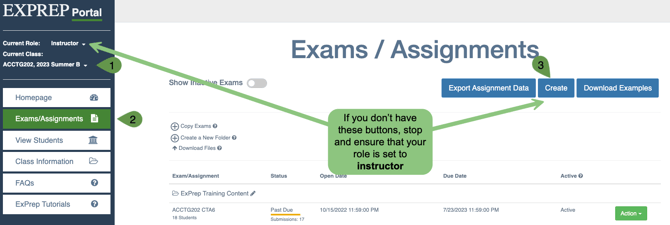
- Log into your ExPrep Portal
- Locate the course (perhaps a sandbox course) where you would like to create the new assignment.
- ➡️ Exams/Assignments tab
- ➡️ Create button
- Select the type of upload that is appropriate
- Single Exam
- Multiple Exams
- Multiple Versions
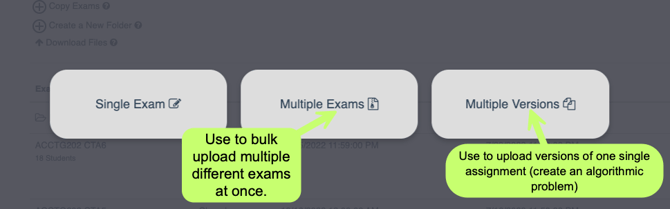
⚠️ If you select Multiple Exams or Multiple Versions, you will be required to upload a zip file. The zip must include two files per assignments with a naming convention where the assignment name matches with (Empty) and (Answers) at the end of the file name. For example,
Midterm (Empty)
Midterm (Answers)
OR
Midterm v1 (Empty)
Midterm v1 (Answers)
Midterm v2 (Empty)
Midterm v2 (Answers)
Follow this link to learn more about zipping a set of files.
- You will then be directed to a screen to determine the exam settings before saving the assignment. Follow this link to learn more about assignment settings.
If you have questions or concerns, please reach out to the support team.
Orientation Assignment
We have created an assignment we recommend using as your first assignment. Using our assignment serves three purposes:
- It allows you to practice creating assignments.
- Assigning this Orientation Assignment in the first week of class requires students to use ExPrep before their first graded assignment. This helps ensure students are familiar with the platform before an important deadline approaches.
- The content in this assignment covers essential aspects such as how to view assignment submission results and how to reach out to our tech team for support. Assigning it will minimize the number of questions students will direct to you.
Orientation Assignment Files
To get the files for the first assignment, please email support@exprep.com