![ExPrep Logos 6.6.24_Black-2.png]](https://support.excelpreparation.com/hs-fs/hubfs/ExPrep%20Logos%206.6.24_Black-2.png?height=40&name=ExPrep%20Logos%206.6.24_Black-2.png)
Make a document trusted to enable macros
You may see this security warning when you open a document or try to run a macro, you can choose to make it a trusted document and enable macros. Example below is on an Excel workbook.

1. Select Enable Content.
2. In the Security Warning dialog, select Yes to make the document trusted.
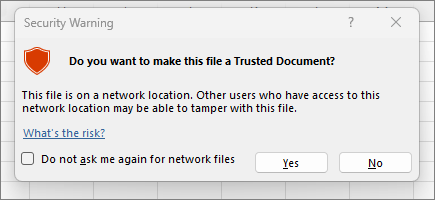
3. Macros are now enabled on this document.
Adding a Trusted Location
A trusted location in Microsoft Office is a folder that contains files you trust to be safe. If you think the active content in a file is from a reliable source, the best practice is to move the file to a trusted location.
⚠️ Any files you store in a trusted location are considered safe by the system and will bypass some of the security checks. Be certain that you trust the source of any files you put there.
For Windows:
1. In Excel, click File > Options.
2. Click Trust Center > Trust Center Settings > Trusted Locations.
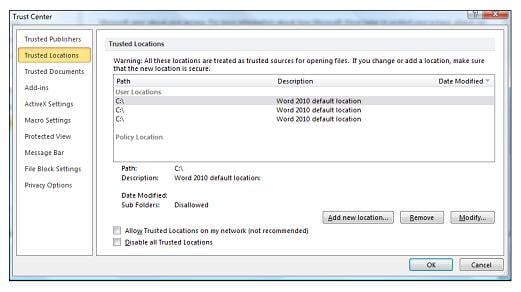
3, Click Add New Location.
4. Click Browse to find the folder, select a folder, and then click OK.
For Mac:
1. In your Excel app, click on Excel Menu > Preferences.
2. Under Excel Preferences, click on Security.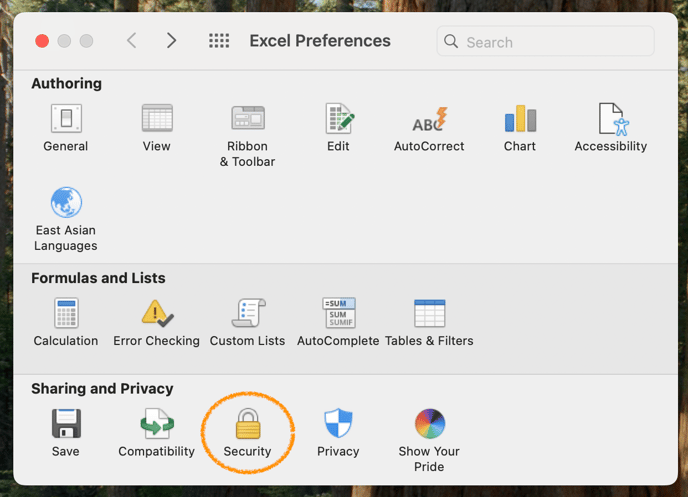
3. This allows you to edit the default settings for Macros.