![ExPrep Logos 6.6.24_Black-2.png]](https://support.excelpreparation.com/hs-fs/hubfs/ExPrep%20Logos%206.6.24_Black-2.png?height=40&name=ExPrep%20Logos%206.6.24_Black-2.png)
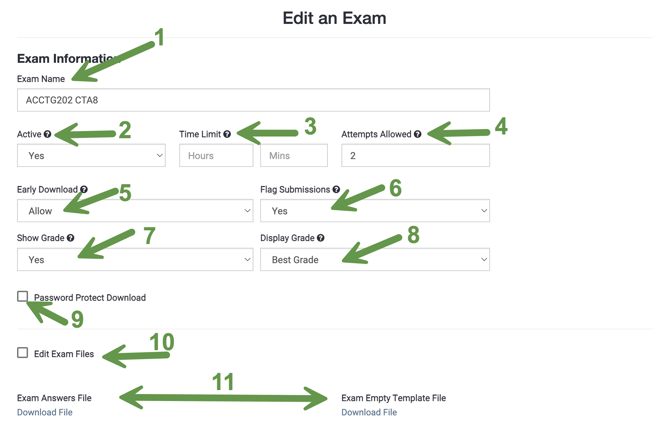
This article explains each of the following assignment settings:
- Exam Name
- Active
- Time Limit
- Attempts Allows
- Early Download
- Flag Submissions
- Show Grade
- Display Grade
- Password Protect Download
- Edit Exam Files
- Download Answer/Empty File
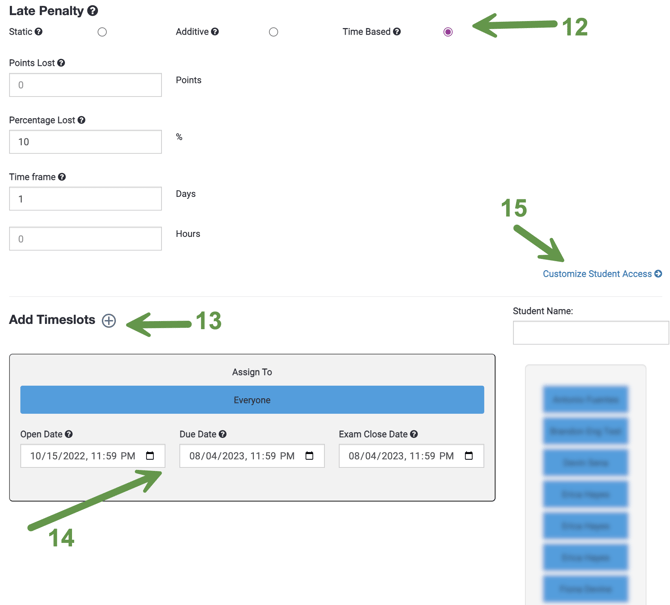
- Late Penalty
- Add Time Slots
- Open/Due/Close Dates
- Customize Student Access
 Exam Name
You can name your exam whatever you would like, but we recommend being strategic with how the assignments are named inside of your sandbox to make it easier to copy assignments into your active classes.
💡 These tips are especially handy if you teach multiple different classes.
- As a general name layout, we recommend something similar to: Acct 201, Exam 1, Fall 2023
- Use the Course Prefix - It will be easier to copy all of the assignments for one particular class if you include the course prefix in the exam name.
- Add the Semester- After you have worked with us for many semesters and your assignments have evolved, you will probably be grateful that you included this.
- Updated Date- If you begin making changes to your assignment files (particularly in the middle of a semester, you might want to include the date that you updated the files so that you can ensure you are using the most current version when you copy it later.
Active
- Yes - the assignment is active and available to students.
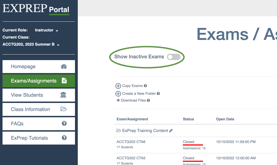
- No- the assignment is not available NOR visible to students.
⚠️If you change the setting to "No" the assignments will not be available in instructor view unless you use the toggle button to show the inactive assignments.
Time Limit
This will create a time limit that begins when the student downloads the empty file.
⚠️A late penalty must be used in conjunction with the time limit, or it will not work. You can set the penalty to 100% if you don't want the student to be able to submit late.
Attempts Allows
This number will determine the number of attempts you will allow a student to submit. If you leave it set to 0 attempts, the student will have unlimited attempts.
💡This pairs nicely with layered incorrect feedback.
Early Download
- Allow- Students are allowed to download their graded file and view the feedback immediately after submission.
- Disallow- Students won't be able to download their graded file and view the feedback until after the close date.
Flag Submissions
Determines whether or not you would like ExPrep to flag suspicious submissions. Please contact the ExPrep Support Team if you have questions about flagged submissions.
Show Grade
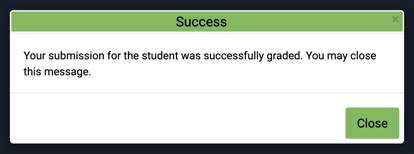
Determines whether or not the student will see their grade immediately after it is submitted.
⚠️Be aware that even if early download is disallowed, if show grade is "yes", the student will see the grade they earned immediately after submission.
- Yes- The student will see their grade displayed immediately after submission
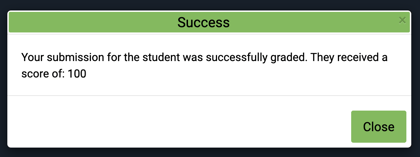
- No- The student will receive a generic message that the assignment has been graded but will not see the grade.
Display Grade
This allows you to decide which grade you want to display when multiple attempts are allowed:
- First Grade
- Latest Grade
- Best Grade
- Average Grade
The system will default to "Best Grade."
Password Protect Download
This allows you to set a password that users must use in order to download the empty file. It might be useful in instances such as administering an exam that should be completed only in the classroom or a testing center.
Edit Exam Files
If you need to make changes to exam files after the assignment has been created, select the checkbox that will extend the screen to include a place to upload a new answer file and/or empty file.
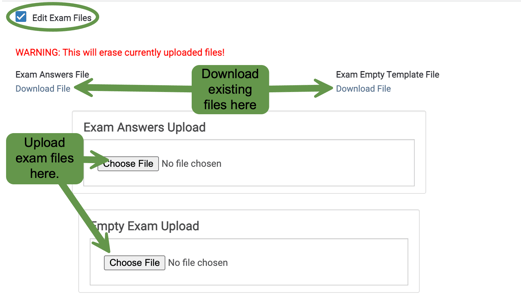
Download Answer/Empty File
If you want to download the existing assignment files, click the download button below the file description. The file will automatically begin downloading.
Late Penalty
A professor can apply three different types of late penalties to an assignment.
- Static
- A singular penalty applied to any/all late submissions
E.g., a 20% late penalty applied to every assignment submitted after the due date, without considering how late or how many times the student has submitted a late assignment in the past
- A singular penalty applied to any/all late submissions
- Additive
- A penalty that increases with each late submission
E.g., 10% per submission would result in a 10% penalty the 1st time a student submits a late assignment and a 20% penalty on the second late assignment.
- A penalty that increases with each late submission
- Time-Based
- A penalty that is directly correlated to a time interval
E.g., 10% per day or 5% per hour, etc.
- A penalty that is directly correlated to a time interval
Add Time Slots
This button will generate a new set of time slots so you can have a unique set of dates associated with the assignment.
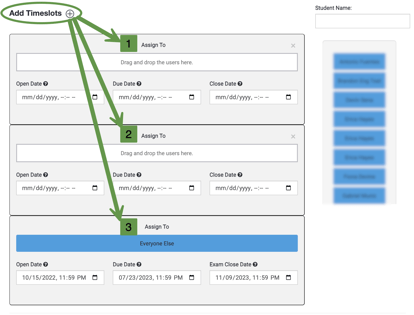
Once you have created multiple time slots, you can pull students into the appropriate time slot.
Open/Due/Close Dates
- Open Date (*Required Field*)
- The date that students will be able to access the file
- Students will see the assignment in their portal prior to this date, but it will be greyed out
- If you don't want the student to see the assignment at all, you must change the "active" status of the assignment
- Due Date
- The date the assignment is due
- Will be used when determining late penalties
- Close Date (*Required Field*)
- The date that the assignment will be closed, and students will no longer be able to submit late assignments
- The date that the assignment results will become available if you "Disallowed" the early download option in the previous assignment settings
⚠️If a student didn't submit an assignment prior to the close date, the action button will be grayed out completely after the close date.
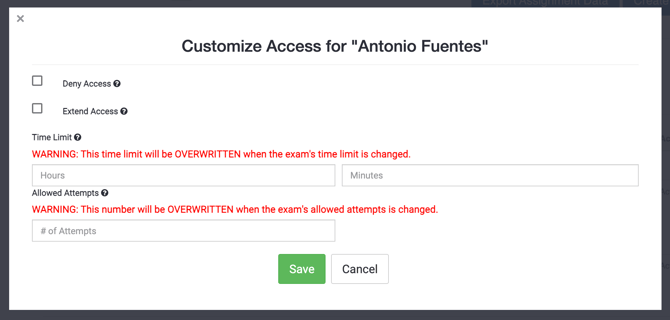
Customize Student Access
This area allows you to customize the access for one student at a time. This is particularly useful for honoring ADA accommodation letters.
- Locate the student that needs custom access
- You can search by name or email address
- ➡️ Manage button
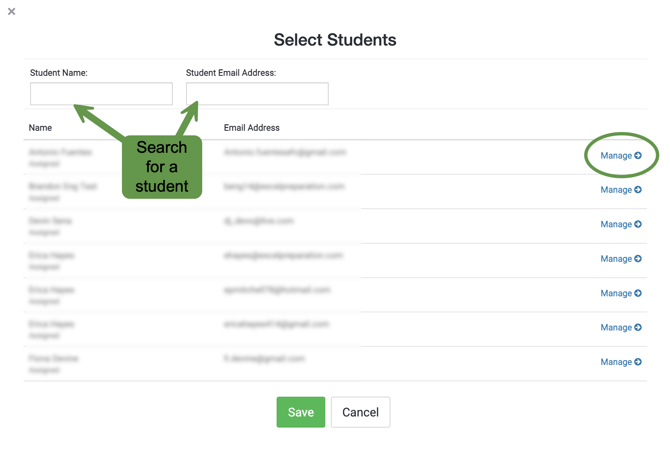
- Update the settings as appropriate.
As always, if you have questions or concerns, please reach out to the support team.